THE WEBTUMMY HELP CENTER
Your website.
Every step, explained.
From your first page to your next big launch.
Clear steps, real screenshots, and help at every click.
Get to know your workspace.
Learn the dashboard, find your tools, and make your first edit.
SEE IT IN ACTION
Watch. Try. Make it yours.
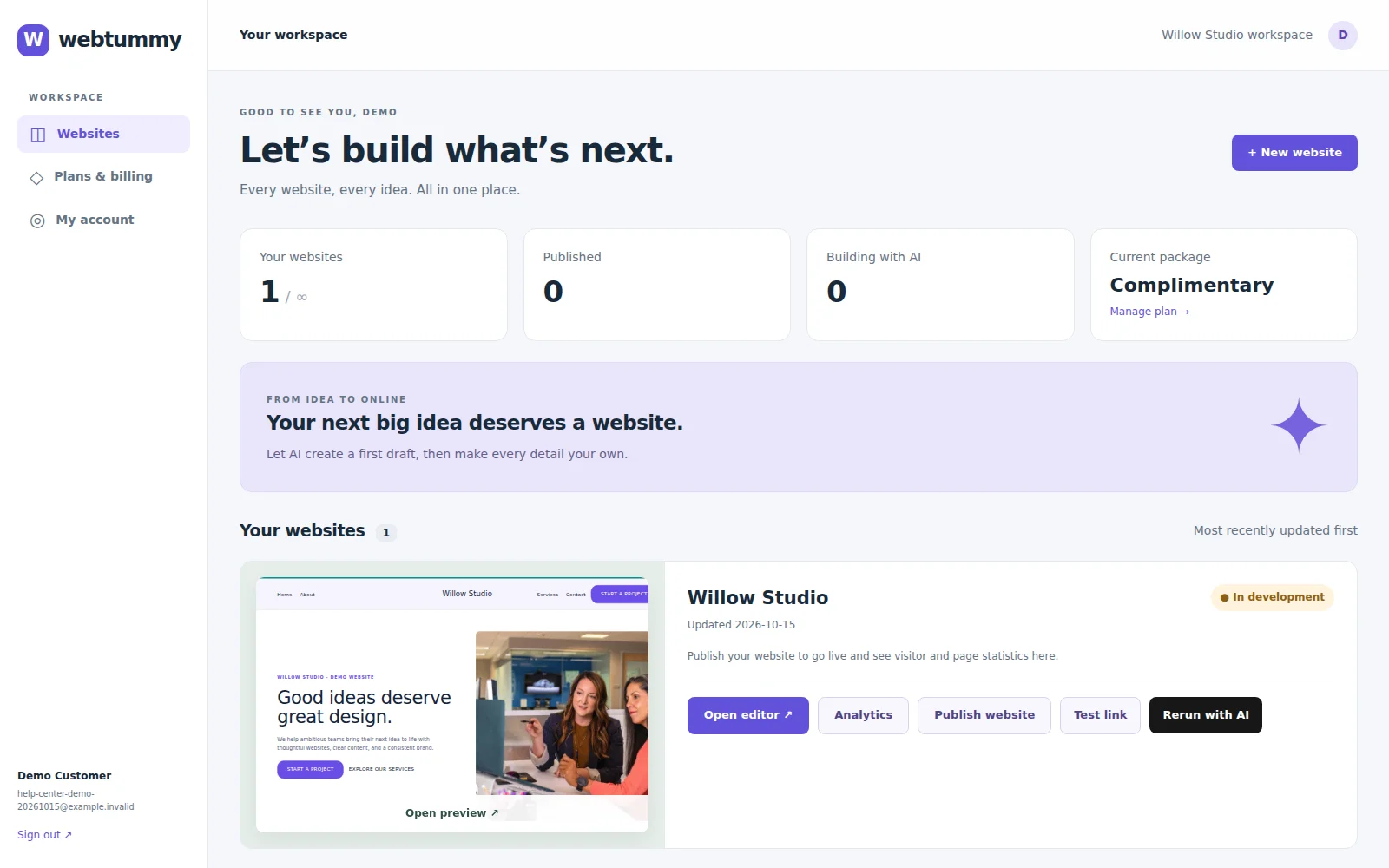
Your dashboard and website actions
Find your website and open the editor, analytics, publishing, and AI tools.
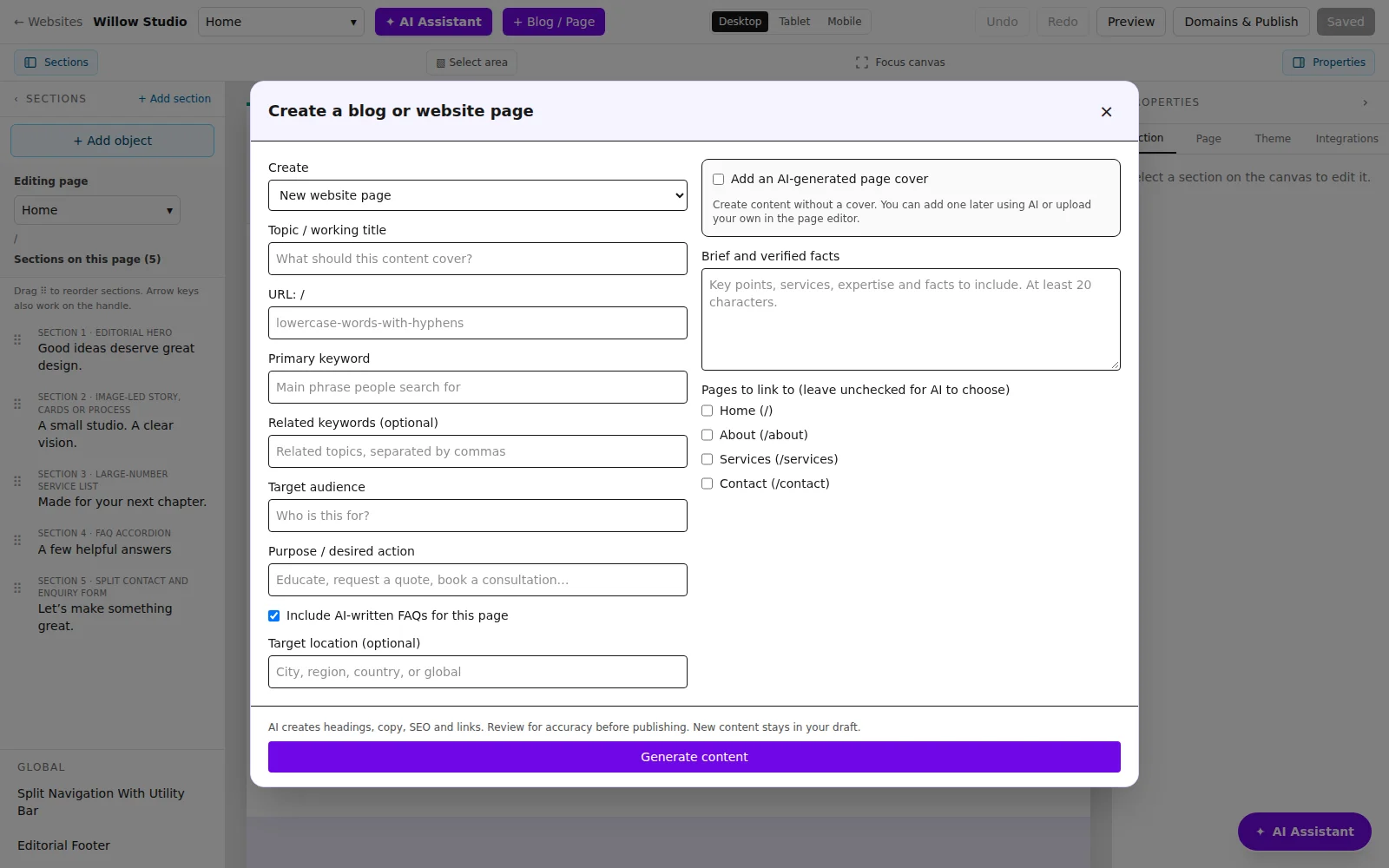
Add a page or blog post
Choose a page type, write a clear brief, and configure an optional cover.
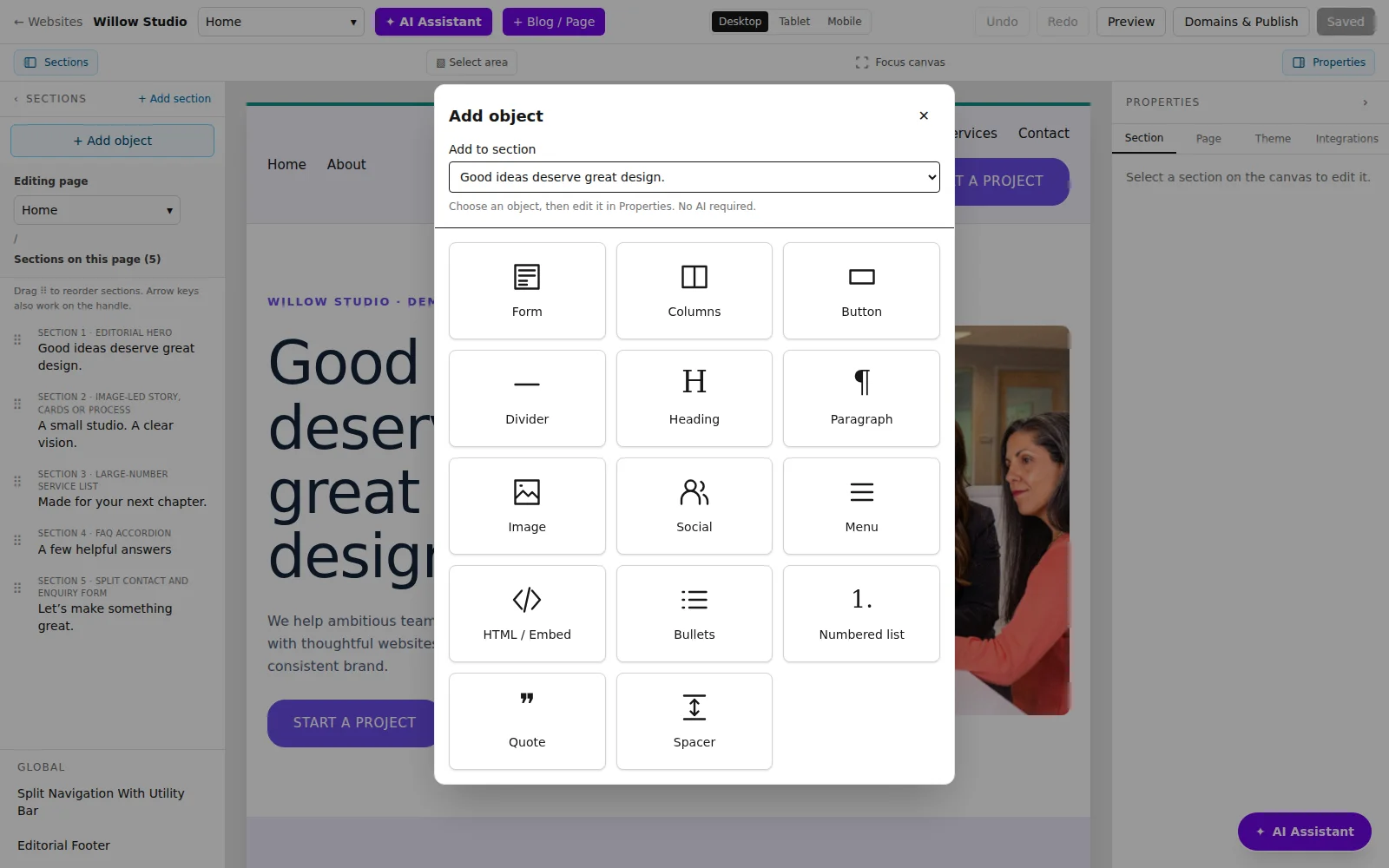
Add sections and objects
Explore AI layouts, create a blank section, and add your first object.
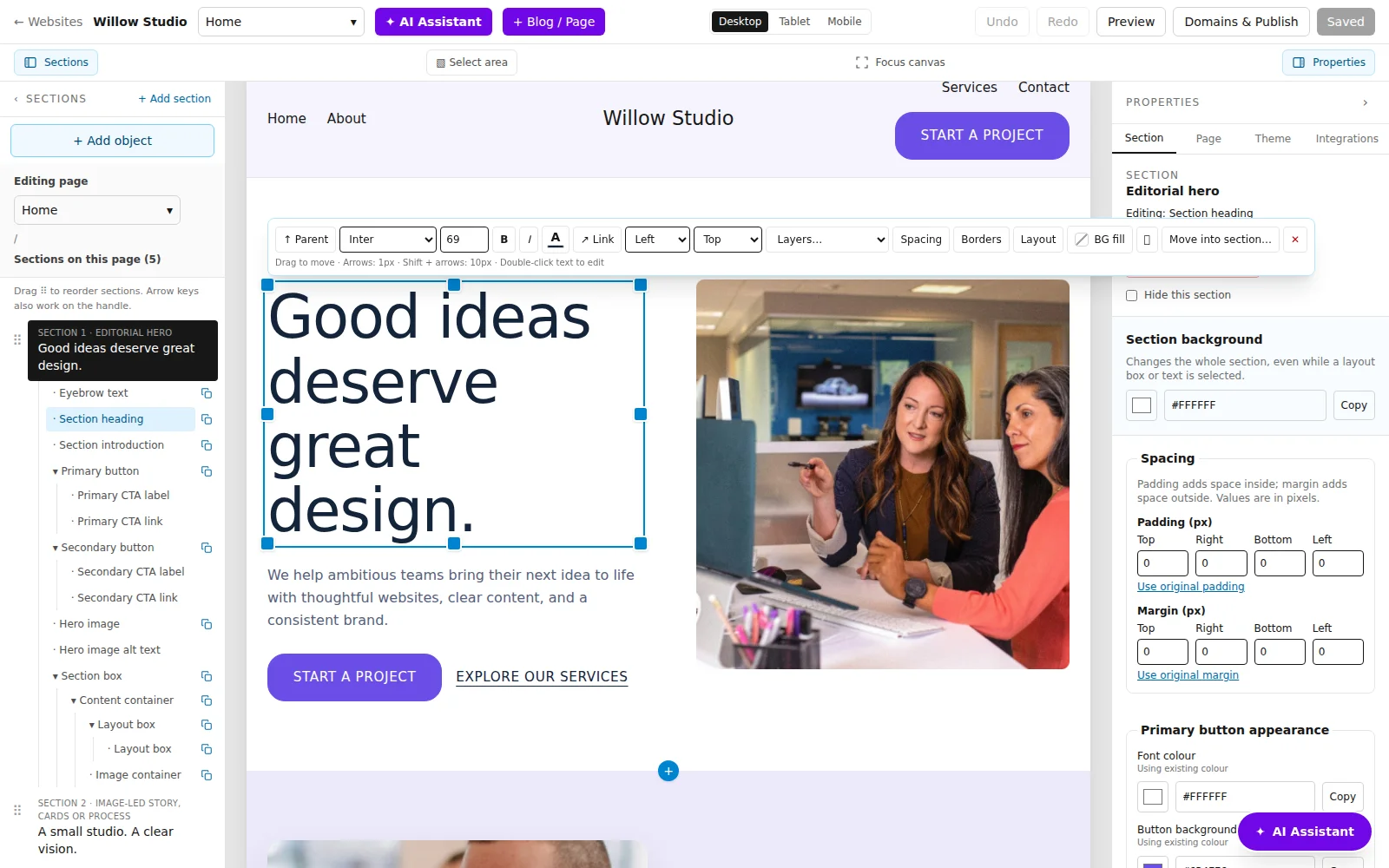
Select and style components
Use the floating toolbar for text, spacing, borders, and movement.
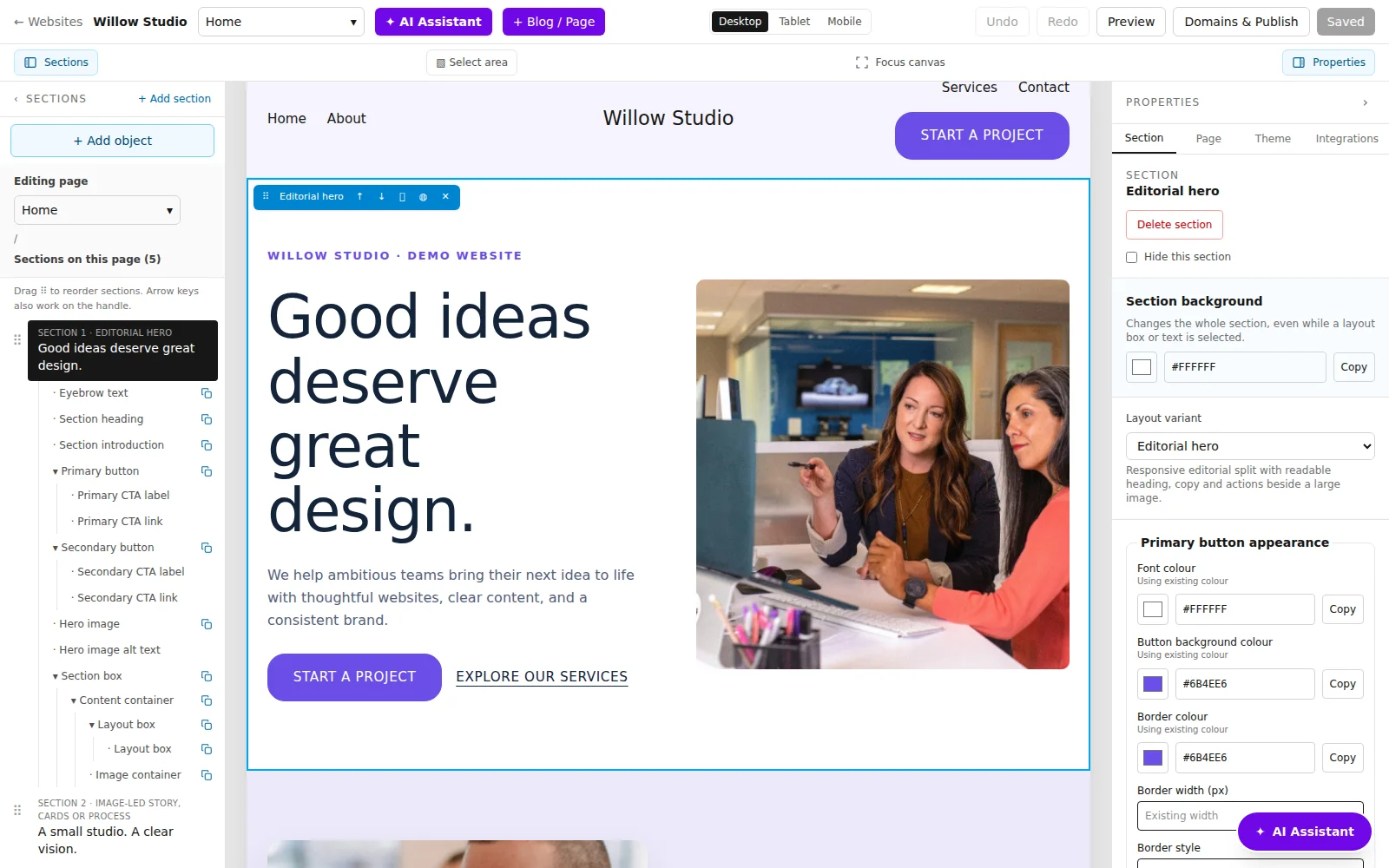
Get to know Properties
Tour the Section, Page, Theme, and Integrations tabs on the right.
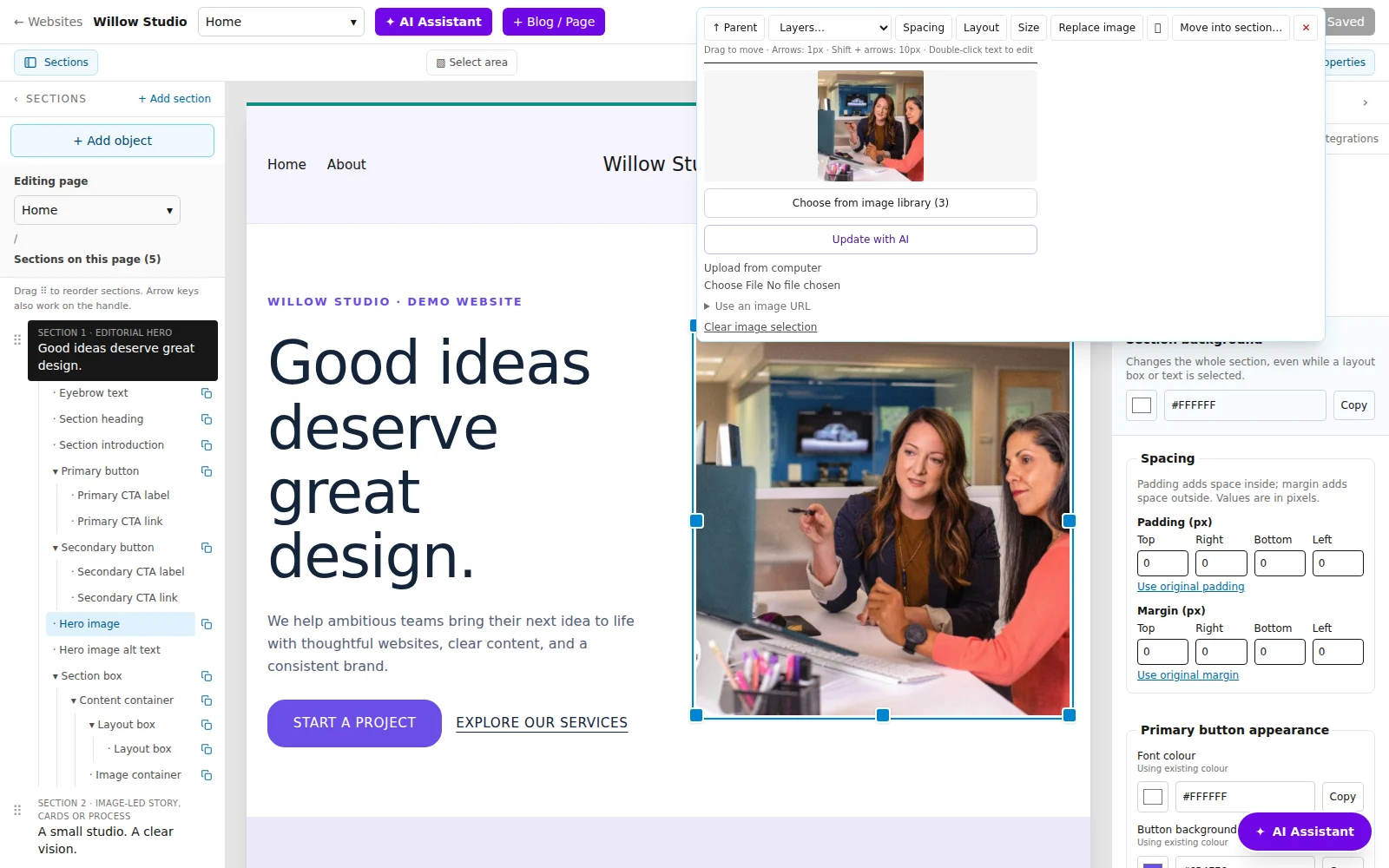
Replace and resize images
Explore uploads, the image library, fit settings, and AI image controls.
THE HOW-TO LIBRARY
Find the guide you need.
Explore a collection, or search for a specific task.
Dashboard & getting started
Find your way around the dashboard
Understand website cards, status labels, and the actions available for each website.
Create a website from your brief
Start a new website and give AI the information it needs.
Your editor, at a glance
Learn the top bar, left section list, canvas, and right properties panel.
Show panels or focus the canvas
Give yourself more room without losing your place.
Pages & blog posts
Switch between website pages
Find the correct page before changing its sections or content.
Add a new website page
Create a page with its own topic, URL, content, and SEO settings.
Create a blog post and cover image
Generate a post, optional cover, and its blog listing.
Edit the page title and main heading
Change the current page’s identity and visible H1.
Set page SEO and search visibility
Edit search titles, descriptions, keywords, and canonical URLs.
Sections & layouts
Add a section with AI
Add a focused block to the current page without rebuilding it.
Choose a section layout yourself
Browse section families and start with a specific component.
Build a blank section without AI
Create a custom section and add your own objects.
Reorder sections
Move whole sections while keeping their contents together.
Hide, duplicate, or delete a section
Manage whole sections using the section action strip.
Use the right-hand Section properties
Edit a section’s content, background, layout, and individual elements.
Change a section’s layout variant
Try another compatible component layout.
Add portfolios, products, awards, and badges
Showcase work or credentials with purpose-built sections.
Select & edit components
Select components and use the element tree
Select the exact text, image, button, or container you want to change.
Add objects and components
Insert any of the 14 available object types without AI.
Edit and format text
Change copy, fonts, size, emphasis, colour, and alignment.
Edit buttons and text links
Set the label and destination for your calls to action.
Adjust padding and margins
Control space inside and around a selected component.
Change borders and background fills
Style an object without changing the whole section.
Arrange components and columns
Control how items are arranged inside a selected container.
Move, resize, and layer objects
Position components precisely within a section or move them to another section.
Select multiple objects and group them
Edit compatible objects together inside one section.
Duplicate or remove a component
Copy an object or remove a selected element.
Add menus, social links, lists, and embeds
Configure the extra components available in Add object.
Images & brand design
Upload or replace an image
Use a file, your project image library, or an image URL.
Generate or update an image with AI
Create a replacement for one selected image.
Resize images and choose fit or crop
Control image width, height, and how the picture fills its box.
Set site-wide colours and typography
Use Theme to create a consistent design across pages.
Change the logo, header, footer, and navigation
Edit the elements shared across your website.
AI tools & content
Use the page AI Assistant
Ask for focused changes to the current page or selection.
Use the assistant’s add menu
Find extra creation actions in the AI drawer.
Rewrite a page while keeping its layout
Improve copy and SEO without asking for a full rebuild.
Ask AI to improve a section
Make a smaller content change from Section properties.
Rerun AI for content, images, or the whole website
Choose the scope of a larger update from the dashboard.
Follow generation progress and review ready content
Understand queued work, progress notices, and content-ready notifications.
Forms, SEO & integrations
Add and customize contact forms
Set field labels, types, required fields, and submission behaviour.
Set site indexing and Search Console verification
Control published search visibility and verification metadata.
Add Google Analytics tracking
Install a GA4 measurement ID on the published website.
Protect forms with reCAPTCHA
Configure the reCAPTCHA v2 checkbox and its keys.
Add global or page-specific scripts
Install supported custom HTML scripts in the right place.
Preview, publish & measure
Save changes and use undo or redo
Keep draft changes and recover recent edits.
Preview desktop, tablet, and mobile
Review the full site before sharing it.
Share a test link for feedback
Let someone review the saved draft before launch.
Connect your domain
Add a domain and follow the DNS setup shown for your website.
Publish your saved website
Launch or update the live website from your saved draft.
Read website traffic and Google reports
Choose a source, date range, and traffic breakdown.
Account & troubleshooting
Manage your account and password
Update your profile, sign-in connections, and email preferences.
Manage your plan and website slots
Find subscription details, website capacity, and billing controls.
Fix common editing and publishing problems
Work through selection, saving, image, AI, and DNS issues.
Ready to put it into practice?
Keep a guide open beside the editor and follow along at your own pace.